


























Audio Splitter: Separate Vocals and Instrument Stems

Use our free Audio Splitter to separate a full mix into vocals and instrument stems. Choose the parts you need, preview every result, and download individual stems or the complete set.

My Device
Audio
Link
Screencast
3h Max Duration10GB File Limit
M4AMP43GPM4BAACM4PM4RM4VAIFAIFFAIFCAVIMOVQTMP3OPUSOGGWAVFLACMPEGWMAMTSMKVMKAWEBMMPGMXF3G2
Remove Vocals
Vocals
00:00 / 00:00
Other
00:00 / 00:00
4.8 rating from 3,794 ratings. Free to use.
4.8 (3,794) · Free
4.8 rating from 3,794 ratings. Free to use.
3,502,038 Users
3,502,038
Users
3,502,038 Users
5,204 Schools & Teams
5,204
Schools & Teams
5,204 Schools & Teams

Split, Preview, and Download Audio Without Complex Editing Software

Logo
Logo
Logo
Logo
Logo
Logo
Logo
Logo
Logo
Logo
Logo
Logo
Logo
Logo
Logo
Logo
Logo
Logo
Logo
Logo
Logo
Logo
Logo
Logo
Logo
Logo
Logo
Logo
Logo
Logo
Logo
Logo
Logo
Logo
Logo
Logo
Logo
Logo
Logo
Logo
Logo
Logo
Logo
Logo
Logo
Logo
Logo
Logo
Logo
Logo
Logo
Logo
Logo
Logo
Logo
Logo
Logo
Logo
Logo
Logo

Separate One Mix into the Stems You Need

Finished audio often hides every voice and instrument inside one track. This Audio Splitter uses focused and multi-stem models to turn that mix into separate, previewable results.

Vocals and Instrumentals Arrive Combined

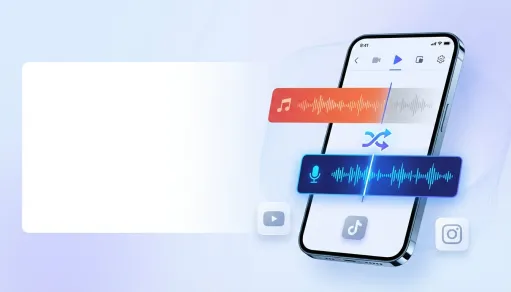
Songs, performances, interviews, and video soundtracks often place voices and background music in the same file. Separate the vocal and instrumental parts so each result can be heard, practiced, edited, or reused on its own.


Vocals and instrumentals combined in one audio mix

Individual Instruments Are Hard to Hear

Drums, bass, piano, guitar, strings, wind, and synthesizer can be difficult to study inside a finished mix. AI models separate audio tracks so you can focus on the part your arrangement, rehearsal, or edit needs.

Individual instruments hidden inside a finished mix

Blind Stem Exports Create Extra Work

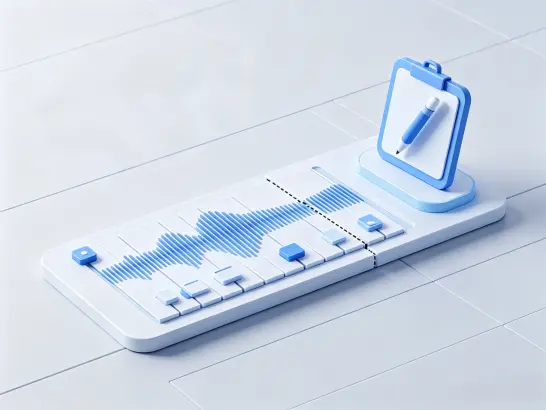
A separated track may contain bleed or may not be the stem you expected. The built-in waveform and playback preview let you solo or mute results, compare the available stems, and download only after you hear the output.

Previewing separated stems before export

Individual Exports Slow Down Larger Projects

A multi-stem result can contain several separate tracks. Download one stem immediately or package the complete result as a ZIP for a cleaner production handoff.

Grouped stem downloads for a larger audio project

How to Split Audio Online in 3 Simple Steps

Add your file, choose the stems you need, review the result, and export it in one guided workflow.

1

Add Your Audio or Video

Upload a common audio or video format from your device, record audio or your screen, or import a direct media link.

2

Select the Stems to Separate

Choose vocals, drums, bass, guitar, piano, strings, wind, synthesizer, or a multi-stem set, then let AI analyze the mix.

3

Preview, Refine, and Download

Play each separated stem, solo or mute the results you want to inspect, and download an individual file or the complete result as a ZIP.

An Audio Splitter Built for Editable Stems

Isolate Vocals or Instrumentals

Use a focused vocal model to separate sung or spoken voices from the rest of a mix. Keep the vocal result for dialogue, practice, or editing, or use the complementary instrumental output for karaoke and arrangement work.

Isolate Vocals or Instrumentals

Separate Multiple Instruments with AI

Choose a focused or multi-stem model when you need more parts from a mixed track. Isolate drums, bass, guitar, piano, strings, wind, or synthesizer, then solo or mute each result to inspect the combination you want.

Separate Multiple Instruments with AI

Hear the Result Before You Download

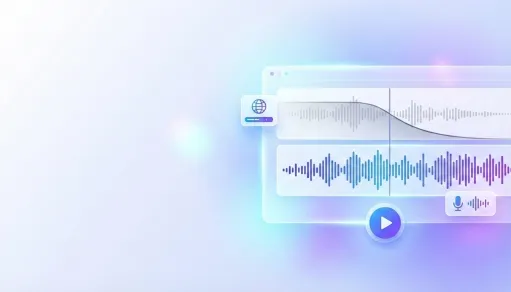
Compare the original with each selected stem in the browser. Waveform playback, solo and mute controls, and repeat previews help you catch unwanted bleed or choose the most useful output before exporting.

Hear the Result Before You Download

Export One Result or the Whole Project

Keep only the output you need or download every available stem together. Individual downloads make quick edits efficient, while a grouped ZIP keeps larger projects organized without repeated manual exports.

Export One Result or the Whole Project

Why This Free Audio Splitter Stands Out

Supports 20+ Audio and Video Formats

Supports 20+ Audio and Video Formats

Split MP3, WAV, FLAC, AAC, M4A, OGG, MP4, MOV, WEBM, and many other common files in one place. Video uploads are accepted when you need to split or separate their audio track.

Focused and Multi-Stem Models in One Tool

Focused and Multi-Stem Models in One Tool

Use the same Audio Splitter to isolate one target stem or unpack a mix into several parts. Focused and multi-stem options keep the workflow flexible without moving between unrelated tools.

Handles Files Up to 10GB and 3 Hours

Handles Files Up to 10GB and 3 Hours

Work with short samples, full songs, long podcast episodes, recorded classes, and extended video. The generous upload limits reduce the need to compress or trim a source file before splitting it.

Fast Processing with a Preview-First Workflow

Fast Processing with a Preview-First Workflow

Most files finish processing in under one minute. Longer files, multi-stem selections, upload speed, and network conditions can add time, while the early preview helps you confirm settings before the final export.

Private Processing and Automatic File Deletion

Private Processing and Automatic File Deletion

Uploaded media is processed securely, is not made public, and is automatically deleted after processing. This keeps recordings out of public workspaces while giving you time to preview and download the result.

Faster Than Routing Every Stem in a Manual Editor

Faster Than Routing Every Stem in a Manual Editor

A traditional DAW can require track setup, source separation plugins, routing, naming, and one-by-one exports. The Audio Splitter brings AI stems, previews, and grouped downloads into a focused workflow that needs no software installation or expert editing setup.

Who Can Benefit from an Online Audio Splitter

Video Editors & Content Teams

Extract usable audio from video and separate voices, music, or instrument stems before rebuilding a soundtrack for a new edit.

Video editors using separated audio stems

What Users Say About Our Audio Splitter

Maya R

Maya R

Podcast Editor

I separated the spoken voice from the music under a long interview and previewed the vocal stem before download. It gave me a much cleaner starting point for the edit.
Daniel K

Daniel K

Music Teacher

Stem Mode gave me separate vocal, drum, and bass tracks for a rehearsal arrangement. Soloing each result before download made it easy to choose the useful parts.
Priya S

Priya S

Language Tutor

I isolated the vocals from a WAV recording and used the instrumental result for a listening exercise. Hearing both tracks first made the choice straightforward.
Evan T

Evan T

Video Producer

The preview helped me compare the vocal and instrumental outputs before I exported anything. I downloaded the track that fit the video edit right away.
Lena M

Lena M

Course Creator

I used the Audio Splitter online from my phone to separate speech from the music in a recorded lesson. I did not need to install an app or create an account.
Jordan P

Jordan P

Songwriter

Being able to download one piano stem first and then grab the complete batch as a ZIP kept my arrangement files much easier to organize.
Sofia N

Sofia N

Localization Coordinator

Our localization handoff needed a clearer voice track from a video. Isolating and previewing the vocal stem made the review much faster than working from the full mix.
Marcus L

Marcus L

Freelance Editor

I imported a video, separated its audio into stems, and checked the vocal against the original mix before exporting. The workflow was very clear.
Chloe B

Chloe B

Training Producer

For a recorded webinar, the vocal model gave me the speech track I needed while the original video remained available for reference. Downloading the result was simple.

Frequently Asked Questions

  • ?

    What can the Audio Splitter separate?

    The Audio Splitter uses AI to separate a mixed audio or video track into vocals and editable instrument stems. Choose a focused vocal, drum, bass, guitar, piano, strings, wind, or synthesizer model, or select a multi-stem set.

  • ?

    Is this Audio Splitter free, and do I need an account?

    Yes. Core stem splitting is free to start, with no credit card or signup required. Free downloads do not add an audio watermark. An account is optional and is only needed when you want to save project history and return to previous work.

  • ?

    Which formats and file sizes can I upload?

    The Audio Splitter supports more than 20 audio and video formats, including MP3, WAV, FLAC, AAC, M4A, OGG, MP4, MOV, and WEBM. A file can be up to 10GB and up to 3 hours long.

  • ?

    Can I isolate only vocals or a specific instrument?

    Yes. Choose a focused model when you need vocals, drums, bass, guitar, piano, strings, wind, or synthesizer. Use a multi-stem set when you want to split audio into parts for several voices and instruments in one task.

  • ?

    Which stems can the AI stem splitter isolate?

    Stem Mode can separate lead vocals, vocals, drums, bass, guitar, piano, strings, wind, synthesizer, or a multi-stem set. Available controls let you solo or mute results before choosing which stems to export.

  • ?

    Can I preview and refine the split before processing the final files?

    Yes. Listen to the original and each separated result, solo or mute available outputs, or revise the stem selection. Repeat the preview until the stems match the result you need.

  • ?

    Can I download stems individually or as a batch?

    Yes. Download an individual stem or package the complete set of available outputs in a ZIP. This supports quick one-file tasks and larger projects without repeated one-by-one exports.

  • ?

    How long does audio splitting take?

    Most files process in under one minute. A long upload, a large file, a multi-stem model, browser performance, and network speed can increase the processing time.

  • ?

    Can I use the Audio Splitter on iPhone, Android, or desktop?

    Yes. The tool runs in a modern mobile or desktop browser, so you can upload, preview, refine, and download without installing a DAW or separate editing app.

  • ?

    What happens to my uploaded audio or video?

    Files are handled through a secure processing workflow, are not made publicly accessible, and are automatically deleted after processing. Download the outputs you want to keep before leaving the completed project.

  • ?

    Does splitting a song or recording change its copyright ownership?

    No. Separating a file into stems does not transfer copyright, ownership, or a license. Upload only media you own or have permission to process, and respect any rights attached to the source.

  • ?

    Can I use the separated stems commercially?

    Commercial use depends on your rights to the source material, the product terms, and the rules of the platform where you publish. The Audio Splitter does not grant permission to monetize copyrighted songs, samples, voices, recordings, or video that you do not own or license.